Project: Etch-a-Sketch
Ever used an Etch-a-Sketch? Now you'll build a digital one. Two dials move a pen around the OLED screen, one button lifts the pen so you can move without drawing, and another shakes the screen clean.
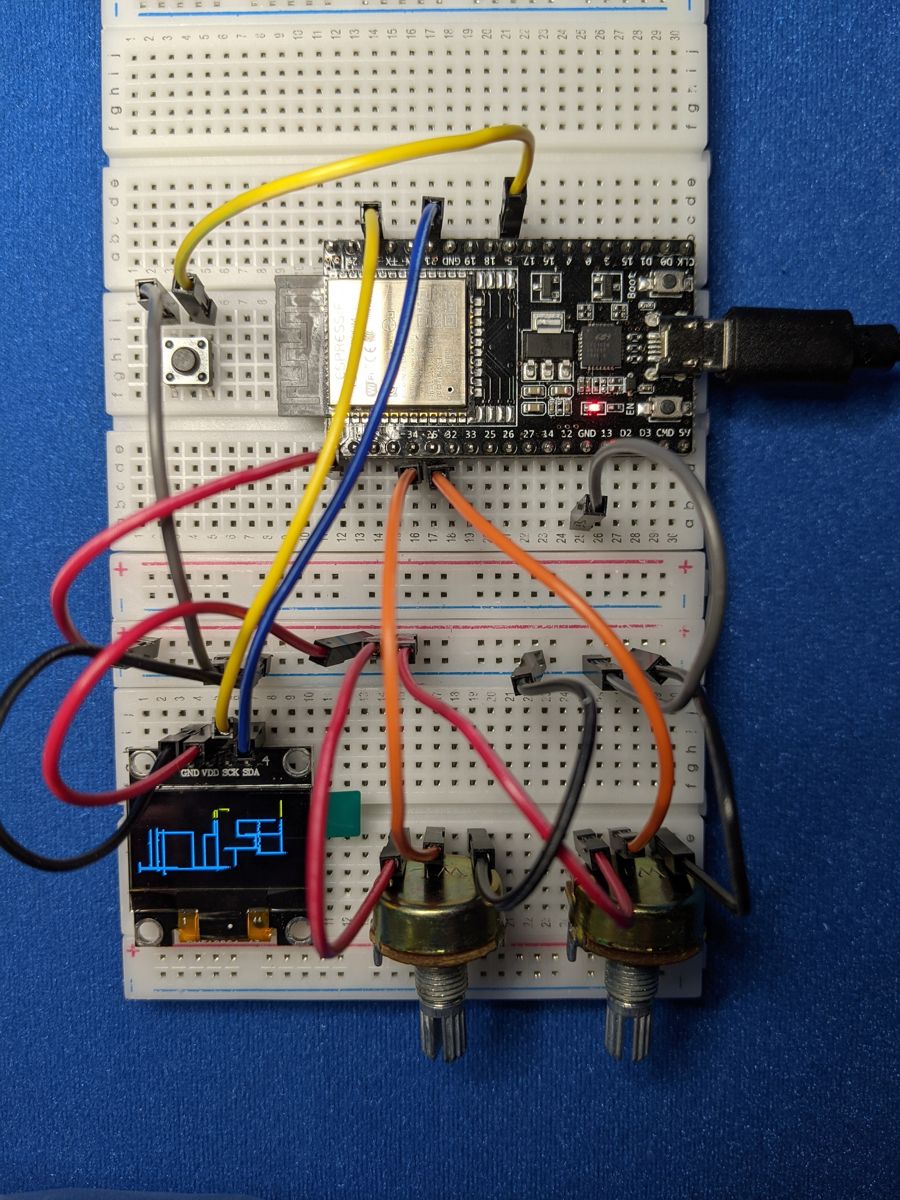
Photo from the first edition. Follow the wiring table for pin numbers.
Objective
- Potentiometer 1 moves the pen left and right.
- Potentiometer 2 moves the pen up and down.
- Button A lifts the pen up or puts it back down. While it's up, a blinking dot shows where you are.
- Button B clears the screen.
You'll need:
- 1 × SSD1306 OLED screen (128 × 64, I2C)
- 2 × potentiometers
- 2 × push buttons
- Jumper wires
Before you start
This project builds on OLED Screens,
Potentiometers and
Buttons. Make sure button.py and
ssd1306.py are saved on your ESP32 (see
Saving Programs to the Board).
Wiring
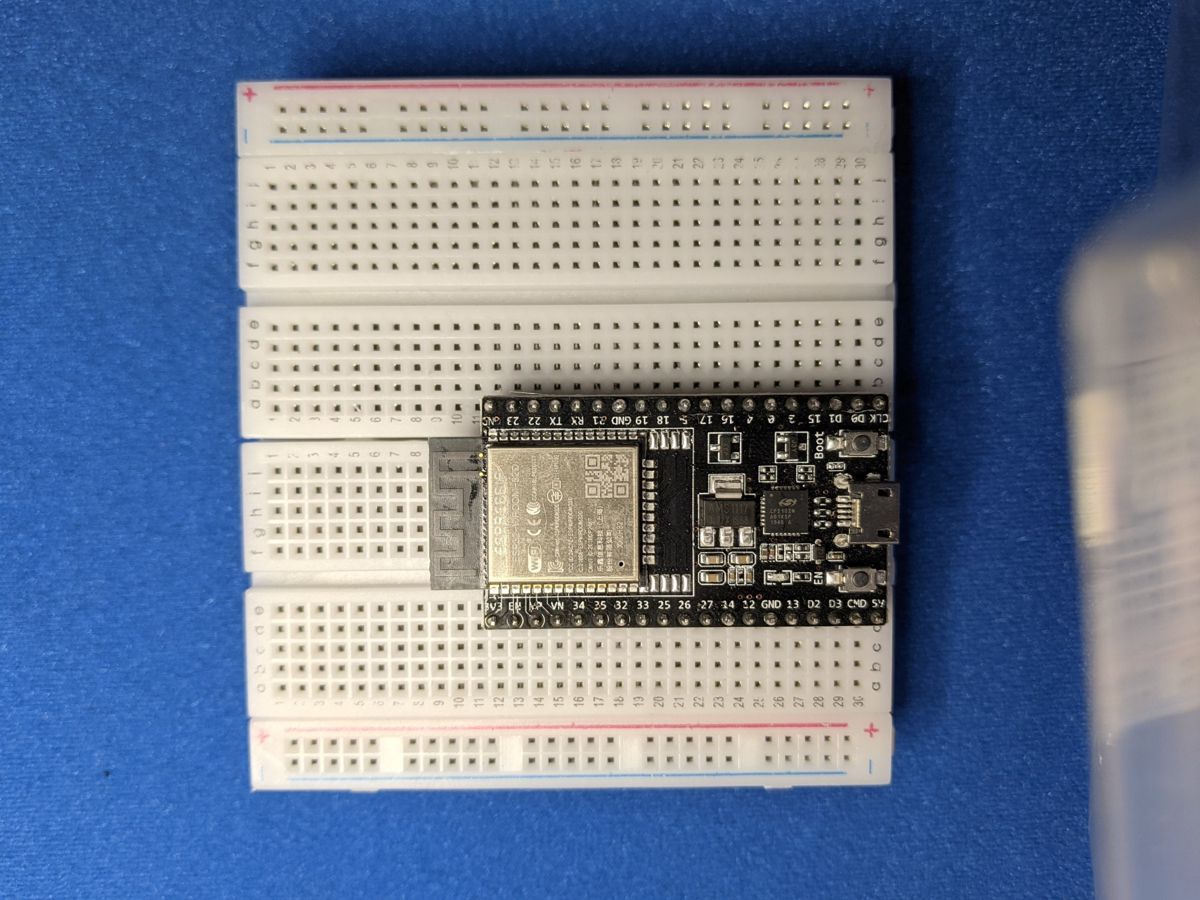
This project needs pins on both sides of the ESP32. Clip two breadboards together and sit the ESP32 across the gap, so both rows of pins have free holes next to them:
| Part | Pin | Connects to |
|---|---|---|
| OLED | GND | GND |
| VCC | 3V3 | |
| SCL | GPIO 22 | |
| SDA | GPIO 21 | |
| Potentiometer 1 (X) | outer legs | 3V3 and GND |
| middle leg | GPIO 34 | |
| Potentiometer 2 (Y) | outer legs | 3V3 and GND |
| middle leg | GPIO 35 | |
| Button A (pen) | one leg | GPIO 14, other leg to GND |
| Button B (clear) | one leg | GPIO 25, other leg to GND |
Tip
If a dial moves the pen the "wrong" way, swap the 3V3 and GND wires on its two outer legs. Nothing in the code needs to change.
Plan it out
- Set up each component: two ADC inputs, two buttons and the OLED screen over I2C.
- Break the job into functions.
read_smooth(pot)averages a handful of readings to steady the pen.read_position()turns the two dial readings into an (x, y) point on the screen.show_cursor(),hide_cursor()andblink_cursor()handle the blinking dot while the pen is up.
- Main loop: check the buttons, read the dials, and draw a line from the last point to the new one.
Code
Save this to your ESP32 as main.py, or click Run in Thonny.
# Etch-a-Sketch: draw on the OLED screen with two potentiometers.
# Pot 1 moves left/right, Pot 2 moves up/down.
# Button A lifts or lowers the pen, Button B clears the screen.
import time
from machine import Pin, ADC, I2C
import ssd1306
from button import Button

POT_X_PIN = 34    # Potentiometer 1
POT_Y_PIN = 35    # Potentiometer 2
PEN_BUTTON_PIN = 14    # Button A
CLEAR_BUTTON_PIN = 25  # Button B
SDA_PIN = 21
SCL_PIN = 22

WIDTH = 128
HEIGHT = 64

# ---- set up the parts ----
pot_x = ADC(Pin(POT_X_PIN), atten=ADC.ATTN_11DB)
pot_y = ADC(Pin(POT_Y_PIN), atten=ADC.ATTN_11DB)
pen_button = Button(PEN_BUTTON_PIN)
clear_button = Button(CLEAR_BUTTON_PIN)
i2c = I2C(0, scl=Pin(SCL_PIN), sda=Pin(SDA_PIN))
display = ssd1306.SSD1306_I2C(WIDTH, HEIGHT, i2c)

pen_down = True
cursor_shown = False    # is the blinking cursor currently drawn?
cursor_under = 0        # the pixel that was under the cursor
last_blink = time.ticks_ms()


def read_smooth(pot):
    # average 16 readings to stop the line from jittering
    total = 0
    for _ in range(16):
        total += pot.read_u16()
    return total // 16


def read_position():
    x = read_smooth(pot_x) * (WIDTH - 1) // 65535
    # (0, 0) is the TOP left of the screen, so flip y:
    # turning the dial up moves the pen up
    y = (HEIGHT - 1) - read_smooth(pot_y) * (HEIGHT - 1) // 65535
    return x, y


def show_cursor(x, y):
    # draw the cursor as the opposite of whatever pixel is underneath
    global cursor_shown, cursor_under
    cursor_under = display.pixel(x, y)
    display.pixel(x, y, 1 - cursor_under)
    cursor_shown = True


def hide_cursor(x, y):
    # put back the pixel that was under the cursor
    global cursor_shown
    if cursor_shown:
        display.pixel(x, y, cursor_under)
        cursor_shown = False


def blink_cursor(x, y):
    # while the pen is up, flash one pixel so you can see where you are
    global last_blink
    if time.ticks_diff(time.ticks_ms(), last_blink) > 300:
        last_blink = time.ticks_ms()
        if cursor_shown:
            hide_cursor(x, y)
        else:
            show_cursor(x, y)
        display.show()


display.fill(0)
display.show()
last_x, last_y = read_position()

while True:
    if clear_button.was_pressed():
        display.fill(0)
        display.show()
        cursor_shown = False

    if pen_button.was_pressed():
        hide_cursor(last_x, last_y)
        pen_down = not pen_down
        print("Pen down" if pen_down else "Pen up")

    x, y = read_position()

    if pen_down:
        if (x, y) != (last_x, last_y):
            display.line(last_x, last_y, x, y, 1)
            display.show()
    else:
        if (x, y) != (last_x, last_y):
            hide_cursor(last_x, last_y)   # the cursor moves with the dials
            display.show()
        blink_cursor(x, y)

    last_x, last_y = x, y
    time.sleep_ms(5)
How it works
From dial to pixel
The screen is 128 pixels wide and 64 tall. Just like in the Music Machine, the code maps each dial's 0–65535 reading onto that range:
On the OLED, (0, 0) is the top-left corner, and y gets bigger as you go
down. That feels backwards when you're turning a dial, so the code flips
it with (HEIGHT - 1) - .... Turning Potentiometer 2 up moves the pen up.
Drawing lines, not dots
If the dial moves quickly, the pen can jump several pixels between two
readings. Drawing single dots would leave gaps, so instead the code draws
a line from the previous point to the new one with display.line().
last_x, last_y = x, y then remembers the new point for next time.
A cursor that doesn't damage your drawing
While the pen is up, the cursor blinks by flipping one pixel. Before
drawing it, show_cursor() remembers what was underneath
(display.pixel(x, y) with no colour reads a pixel). hide_cursor()
puts it back exactly as it was, so the cursor never rubs out any of
your lines.
Result
Turn the dials to draw, press Button A to hop to a new spot without leaving a trail, and Button B to start over. You can also press the ESP32's EN (reset) button to clear the screen.
Make it your own
- Save your art: keep a list of every point you draw and replay the drawing on start-up.
- Eraser mode: add Button C (GPIO 32) to switch between drawing white
(colour
1) and erasing (colour0). - Shape stamps: use
display.rect()ordisplay.ellipse()to stamp a shape at the cursor when you press a button.