OLED Screens
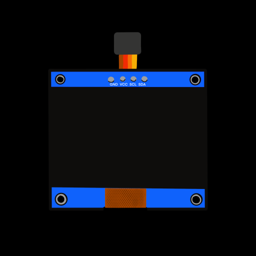
A small OLED screen lets your projects show text, numbers and graphics without needing a computer. The 0.96-inch SSD1306 display used here has 128 × 64 pixels, each of which you can switch on or off, and it talks to the ESP32 using I2C.
You'll need:
- 1 × SSD1306 128×64 I2C OLED display (4 pins: GND, VCC, SCL, SDA)
- 4 × jumper wires
- A potentiometer (for the challenge)
Hardware
What is I2C?
I2C (say "eye-squared-see") is a way for chips to exchange data using just two wires:
- SDA (serial data) carries the data.
- SCL (serial clock) carries a clock signal that keeps both sides in step.
Lots of devices can share the same two wires. Each has its own address,
like a house number, so the ESP32 can talk to one at a time. Most SSD1306
screens use address 0x3C.
Wiring
| OLED pin | Connect to |
|---|---|
| GND | ESP32 GND |
| VCC | ESP32 3V3 |
| SCL | ESP32 GPIO 22 |
| SDA | ESP32 GPIO 21 |
The order of the pins differs between screens, so read the labels on yours rather than going by position.
Correction from the first edition
The first edition of this guide had SDA and SCL the wrong way round in the text. The ESP32's usual I2C pins are SDA = 21 and SCL = 22.
Check the connection
Run this in Thonny's Shell:
i2c.scan() lists the address of every device it finds. 60 is 0x3C
written as a normal number. If you get [], the ESP32 can't see the
screen: check the wiring, especially that SDA and SCL aren't swapped.
Install the display driver
The ESP32 doesn't know how to drive an SSD1306 on its own, so you need a
small driver module called ssd1306.py. Pick one way to install it:
- With the ESP32 connected, open Tools → Manage packages…
- Search for
ssd1306and install the micropython-lib version onto the board.
- Download
ssd1306.py(the official driver from micropython-lib). - Save it onto your ESP32 as
ssd1306.py. See Saving Programs to the Board.
See Command-Line Tools.
Software
Drawing on the screen
# Draw text and shapes on a 128x64 SSD1306 OLED screen
from machine import I2C, Pin
import ssd1306

SDA_PIN = 21
SCL_PIN = 22
WIDTH = 128
HEIGHT = 64

i2c = I2C(0, scl=Pin(SCL_PIN), sda=Pin(SDA_PIN))
display = ssd1306.SSD1306_I2C(WIDTH, HEIGHT, i2c)

display.fill(0)                          # clear the screen (all pixels off)
display.rect(0, 0, WIDTH, HEIGHT, 1)     # outline around the edge
display.fill_rect(0, 0, WIDTH, 12, 1)    # solid bar across the top
display.text("CircuitCoder", 16, 2, 0)   # dark text on the bar (colour 0)
display.text("Hello World!", 16, 24, 1)  # lit text (colour 1)
display.line(8, 40, 119, 56, 1)          # diagonal line
display.pixel(64, 60, 1)                 # a single dot

display.show()   # nothing appears until you call show()
The screen is a grid of pixels. (0, 0) is the top-left corner. x goes
up to 127 moving right, and y goes up to 63 moving down.
| Command | What it does |
|---|---|
display.fill(c) |
Set every pixel to colour c (0 = off, 1 = on) |
display.pixel(x, y, c) |
Set a single pixel |
display.text("Hi", x, y, c) |
Write text with its top-left corner at (x, y) |
display.line(x1, y1, x2, y2, c) |
Draw a line between two points |
display.rect(x, y, w, h, c) |
Draw an outline rectangle, w wide and h tall |
display.fill_rect(x, y, w, h, c) |
Draw a solid rectangle |
display.show() |
Send everything you've drawn to the screen |
Each character of text is 8 × 8 pixels, so a line fits 16 characters and the screen fits 8 lines.
Nothing happens?
Drawing commands only change a copy of the screen in the ESP32's memory.
Nothing appears until you call display.show(). Forgetting it is the
most common OLED bug!
Animation
To animate something, clear the screen, draw the next frame, show it, and repeat:
# A ball that bounces around the OLED screen
import time
from machine import I2C, Pin
import ssd1306

WIDTH = 128
HEIGHT = 64
SIZE = 4   # the ball is a 4x4 square

i2c = I2C(0, scl=Pin(22), sda=Pin(21))
display = ssd1306.SSD1306_I2C(WIDTH, HEIGHT, i2c)

x, y = 10, 20      # position
dx, dy = 2, 1      # speed in pixels per frame

while True:
    x += dx
    y += dy
    # reverse direction when the ball reaches an edge
    if x <= 0 or x >= WIDTH - SIZE:
        dx = -dx
    if y <= 0 or y >= HEIGHT - SIZE:
        dy = -dy

    display.fill(0)
    display.fill_rect(x, y, SIZE, SIZE, 1)
    display.show()
    time.sleep_ms(20)
dxanddyare the ball's speed: how many pixels it moves each frame.- When the ball reaches an edge, flipping the sign of
dxordysends it back the other way.
Challenge
Wire a potentiometer to GPIO 34 (see Potentiometers), and draw a bar graph that grows and shrinks as you turn the knob, with the percentage written above it.
Show a solution
# Show a potentiometer's position as a bar graph on the OLED
from machine import ADC, I2C, Pin
import ssd1306

i2c = I2C(0, scl=Pin(22), sda=Pin(21))
display = ssd1306.SSD1306_I2C(128, 64, i2c)
pot = ADC(Pin(34), atten=ADC.ATTN_11DB)

while True:
    percent = pot.read_u16() * 100 // 65535
    bar_width = percent * 118 // 100

    display.fill(0)
    display.text("Pot: " + str(percent) + "%", 5, 10, 1)
    display.rect(4, 34, 120, 16, 1)            # empty outline
    display.fill_rect(5, 35, bar_width, 14, 1)  # the filled part
    display.show()
Use two knobs to move a drawing point instead, and you've got the Etch-a-Sketch project!
Next up: Motion Sensors.