Buttons
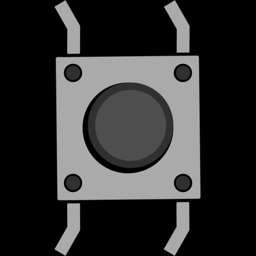
A push button is your first input: instead of the code controlling the hardware, the hardware tells the code what's happening. You'll learn how the ESP32 reads a pin, why buttons "bounce", and how to package code into a module you can reuse in every project.
You'll need:
- 1 × push button
- The LED and resistor from the LEDs lesson
- 2 × jumper wires
Hardware
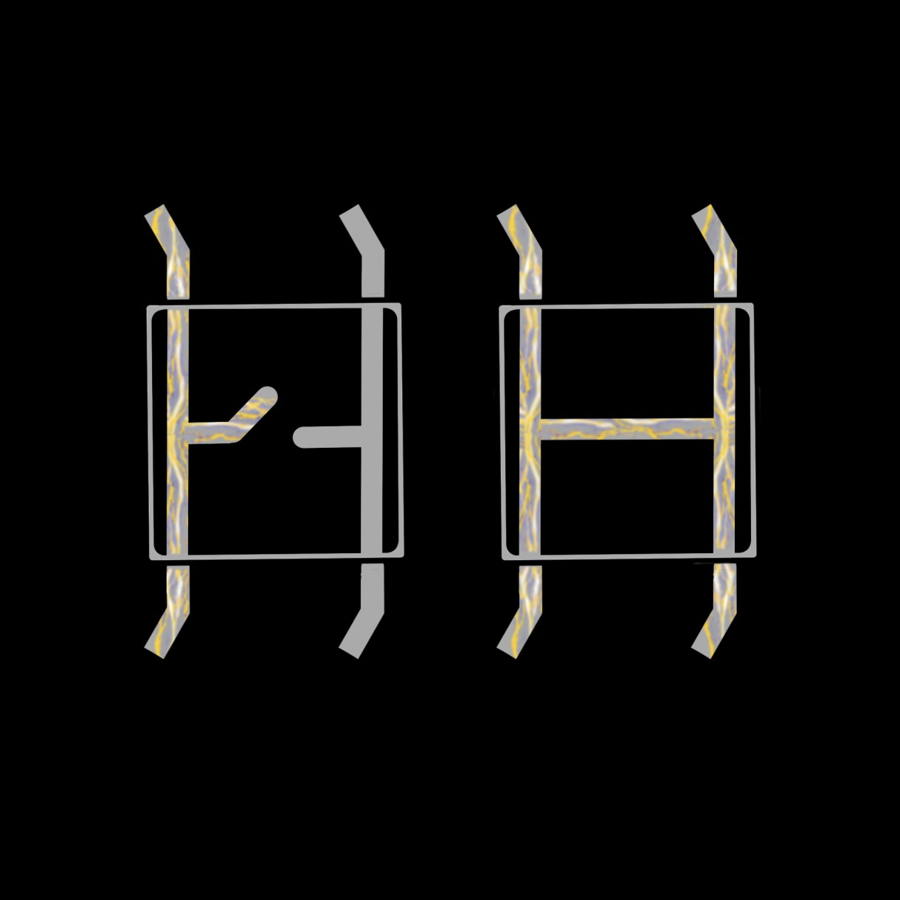
A push button has four legs, joined in two pairs. Pushing the button down connects the pairs, so electricity can flow through. Let go, and the connection opens again.
The simplest way to use one is to connect one leg to a GPIO pin and a leg on the other side of the button to GND. Plug the button across the gap in the middle of the breadboard so the pairs aren't shorted together.
Wiring
| From | To |
|---|---|
| ESP32 GPIO 14 | One leg of the button |
| Button leg on the opposite side | ESP32 GND |
Keep the LED from the last lesson plugged in on GPIO 27. You'll use it shortly.
Pull-up resistors
When the button isn't pressed, the pin isn't connected to anything. A pin like that is "floating" and reads random 0s and 1s. To fix this, we switch on the ESP32's built-in pull-up resistor, which gently pulls the pin up to 3.3 V:
- Not pressed: the pull-up holds the pin at 3.3 V, so it reads 1.
- Pressed: the button connects the pin straight to GND, so it reads 0.
That might feel backwards: pressed is 0! It's the most common way to wire buttons, so you'll get used to it.
Note
GPIO 34–39 don't have pull-up resistors, so don't use them for buttons.
Software
Reading the pin
# Print what a button's pin reads, 10 times a second
import time
from machine import Pin

BUTTON_PIN = 14  # Button A

# PULL_UP keeps the pin at 1 until the button connects it to GND
button = Pin(BUTTON_PIN, Pin.IN, Pin.PULL_UP)

while True:
    print(button.value())   # 1 = not pressed, 0 = pressed
    time.sleep(0.1)
Pin(BUTTON_PIN, Pin.IN, Pin.PULL_UP)sets the pin up as an input with the pull-up resistor switched on.button.value()reads the pin:1or0.
Run it and hold the button down. The stream of 1s should turn into 0s.
Debouncing
Say you want to count presses. The obvious idea is "if the pin changed to 0, add one". But when the metal contacts inside the button touch, they bounce against each other for a few milliseconds. To a fast microcontroller, one press can look like five!
The fix is called debouncing: once we see a change, we ignore the button for a moment until it has settled.
# Count button presses, ignoring the "bounces"
import time
from machine import Pin

BUTTON_PIN = 14

button = Pin(BUTTON_PIN, Pin.IN, Pin.PULL_UP)

last_value = button.value()
presses = 0

while True:
    value = button.value()
    if value != last_value:      # the button just changed
        if value == 0:           # ...and it changed to pressed
            presses += 1
            print("Pressed! Total:", presses)
        last_value = value
        time.sleep_ms(20)        # ignore the bouncing for 20 ms
last_valueremembers what the button read last time around the loop, so we only react when the value changes, not the whole time it's held.time.sleep_ms(20)waits 20 milliseconds after every change, which is long enough for the bouncing to stop.
Try removing the sleep_ms line and pressing the button a few times. You'll
probably see the count jump by more than one.
A reusable Button module
Almost every project uses buttons, and copying the debounce code every time
gets messy (especially with three buttons!). So we've packaged it into a
module: a Python file that other programs can import.
- Download
button.py(or copy it from the box below). - Save it onto your ESP32 as
button.py. See Saving Programs to the Board if you need a reminder of how.
button.py
# button.py - a debounced push button you can reuse in any project.
#
# Wiring: one leg of the button to a GPIO pin, the other leg to GND.
# The internal pull-up resistor keeps the pin at 1 until the button
# is pressed, which connects it to GND and makes it read 0.
#
# Usage:
#   from button import Button
#   button = Button(14)
#   while True:
#       if button.was_pressed():
#           print("Pressed!")

import time
from machine import Pin


class Button:
    def __init__(self, pin_number, debounce_ms=30):
        self.pin = Pin(pin_number, Pin.IN, Pin.PULL_UP)
        self.debounce_ms = debounce_ms
        self._last_reading = self.pin.value()
        self._stable_value = self._last_reading
        self._changed_at = time.ticks_ms()
        self._pressed = False

    def _update(self):
        # Only trust a new reading once it has stayed the same for
        # debounce_ms. That ignores the "bounces" a button makes
        # for a few milliseconds when it is pushed or released.
        reading = self.pin.value()
        now = time.ticks_ms()
        if reading != self._last_reading:
            self._last_reading = reading
            self._changed_at = now
        elif (reading != self._stable_value
              and time.ticks_diff(now, self._changed_at) >= self.debounce_ms):
            self._stable_value = reading
            if reading == 0:
                self._pressed = True

    def was_pressed(self):
        # True once for each push, no matter how long it is held down.
        self._update()
        if self._pressed:
            self._pressed = False
            return True
        return False

    def is_down(self):
        # True for as long as the button is held down.
        self._update()
        return self._stable_value == 0
This version is a little smarter than our first one. Instead of pausing the
whole program with sleep_ms, it notes the time of each change and only
trusts the reading once it has stayed the same for 30 ms. Your program never
has to stop and wait.
Now counting presses takes just a few lines:
# Count presses using the reusable Button class from button.py
# (copy button.py onto your ESP32 first)
from button import Button

button = Button(14)
presses = 0

while True:
    if button.was_pressed():
        presses += 1
        print("Pressed! Total:", presses)
The Button class gives you two methods:
| Method | Returns True… |
Use it for… |
|---|---|---|
button.was_pressed() |
once for each press | Toggling things, counting, menus |
button.is_down() |
the whole time the button is held | "Hold to move" controls |
Keep your loop fast
The button is only checked when you call one of these methods. If your
loop has a long time.sleep() in it, a quick press can slip by
unnoticed. Keep sleeps short, or leave them out.
Button + LED
Time to combine what you've learned. Each press should flip the LED between on and off. Try writing it yourself first!
# Each press of Button A turns the LED on or off
from machine import Pin
from button import Button

LED_PIN = 27
BUTTON_PIN = 14

led = Pin(LED_PIN, Pin.OUT)
button = Button(BUTTON_PIN)

while True:
    if button.was_pressed():
        led.value(not led.value())   # flip the LED
Challenge
Make the LED light up only while the button is held down, but also print "Pressed!" once each time it's pushed.
Show a solution
# The LED stays on only while Button A is held down,
# and a message is printed each time it's pressed
from machine import Pin
from button import Button

led = Pin(27, Pin.OUT)
button = Button(14)

while True:
    if button.was_pressed():
        print("Pressed!")
    led.value(button.is_down())
button.is_down() returns True or False, and led.value() treats
those just like 1 and 0.
Next up: Potentiometers, an input that gives you a whole range of values instead of just on or off.