LEDs
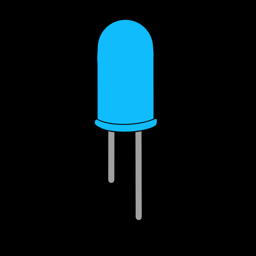
An LED (light-emitting diode) is the "hello world" of electronics. It's an output: your code switches it on and off. Along the way you'll learn how a GPIO pin sends out power, and why every LED needs a resistor.
You'll need:
- 1 × LED (any colour)
- 1 × 220 Ω or 330 Ω resistor
- 2 × jumper wires
Start with the built-in LED
Most ESP32 boards have a tiny LED already soldered on and wired to GPIO 2, so you can blink something before you plug in any parts. Open a new file in Thonny, paste this in, and click Run (F5):
# Blink the LED that's built into the ESP32 board (no wiring needed!)
import time
from machine import Pin

led = Pin(2, Pin.OUT)  # most ESP32 DevKit boards have an LED on GPIO 2

while True:
    led.on()
    time.sleep(1)  # wait 1 second
    led.off()
    time.sleep(1)
The small blue light on your board should blink once a second. Click Stop (Ctrl+F2) when you've seen enough.
No blinking?
A few boards don't have an LED on GPIO 2. If yours doesn't blink but Thonny shows no error, your code is fine. Move on to the external LED below.
Hardware
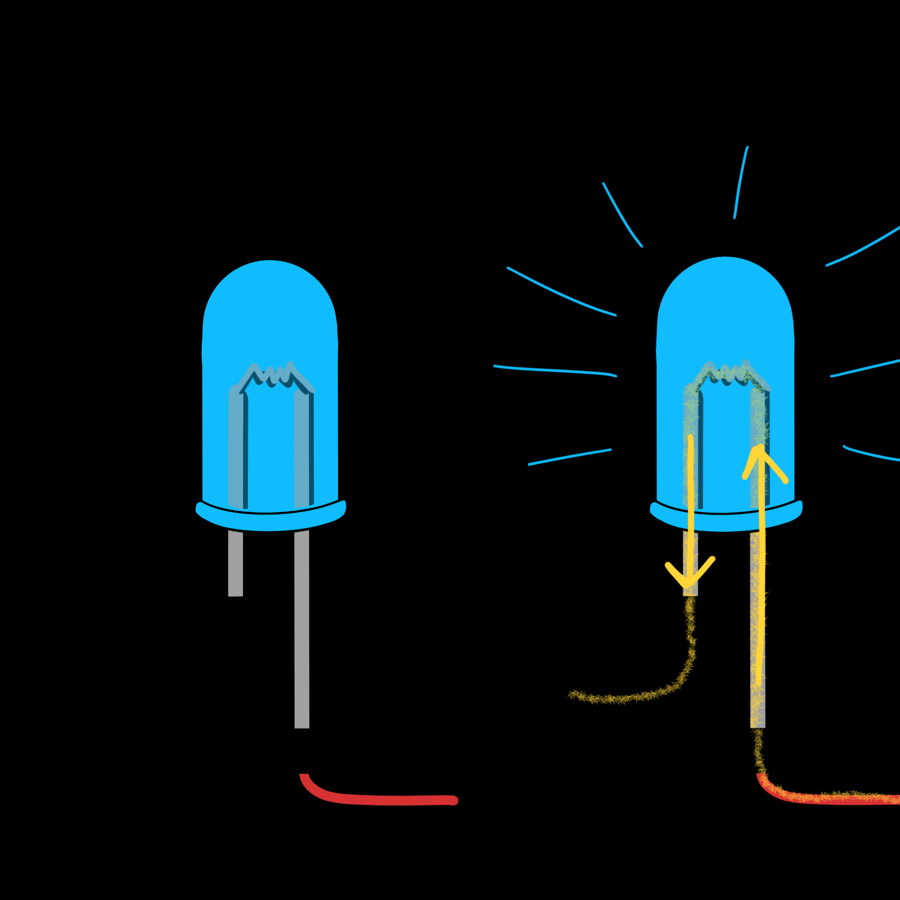
Diodes only let current flow one way, so an LED has to be plugged in the right way round:
- The long leg (the anode, +) connects towards the GPIO pin.
- The short leg (the cathode, –) connects to GND. The rim of the LED usually has a flat edge on this side too.
When the pin is switched on, it puts out 3.3 V. Current flows through the LED to ground, and the LED lights up.
Why the resistor matters
An LED on its own has almost no resistance, so it would try to pull far more current than an ESP32 pin can safely give. That can burn out the LED or damage the pin. A 220–330 Ω resistor in series limits the current to a safe 5–10 mA, which is still plenty bright. It doesn't matter which leg of the LED the resistor is on, or which way round the resistor goes.
Wiring
| From | To |
|---|---|
| ESP32 GPIO 27 | Resistor (either end) |
| Resistor (other end) | LED long leg |
| LED short leg | ESP32 GND |
Always use a resistor
Some older tutorials (including the first edition of this guide) wire an LED straight to a pin. It often seems to work, but it overloads the pin and shortens the life of both parts.
Software
The code for an external LED is exactly the same, except for the pin number. It's good practice to put pin numbers in a CAPITALISED variable at the top of the file, so they're easy to find and change later.
# Blink an LED wired to GPIO 27
import time
from machine import Pin

LED_PIN = 27  # any pin that's OK for output (see the ESP32 Pins page)

led = Pin(LED_PIN, Pin.OUT)

while True:
    led.on()        # send 3.3 V out of the pin: current flows, the LED lights
    time.sleep(1)
    led.off()       # back to 0 V: no current, the LED goes dark
    time.sleep(1)
Here's what each part does:
from machine import Pin: themachinemodule comes built into MicroPython and is how your code talks to the hardware.Pin(LED_PIN, Pin.OUT)sets GPIO 27 up as an output.led.on()andled.off()switch the pin between 3.3 V and 0 V.while True:repeats the indented code forever, until you press Stop.
Try it in the REPL
The Shell panel at the bottom of Thonny is a REPL (read-evaluate-print loop). Anything you type there runs on the ESP32 straight away, which makes it great for quick experiments. Type these lines one at a time and watch the LED:
led.value() tells you what the pin is currently set to: 1 for on, 0
for off.
Challenge
Can you make the LED blink faster and faster? Try writing it yourself first, then compare with this version:
Show a solution
# Flip an LED between on and off, faster and faster
import time
from machine import Pin

LED_PIN = 27

led = Pin(LED_PIN, Pin.OUT)

delay = 1.0
while delay > 0.05:
    led.value(not led.value())   # on becomes off, off becomes on
    time.sleep(delay)
    delay = delay * 0.9   # shrink the delay by 10% every time

led.off()
print("Done!")
led.value(not led.value()) reads the LED's current state and sets it
to the opposite, so the same line turns it on and off.
Next up: Buttons, your first input.